
Generate print report in the Portal
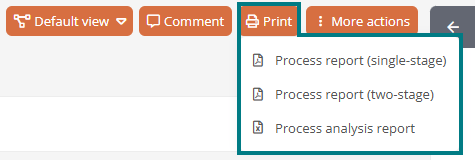
By default, you can generate print reports via the print button in the respective object format.
Note: If no print report is available on the object, the button is not displayed.
Note: With the appropriate configuration, print reports can also be generated via quickstarts in the Portal. Further details can be found under Quickstarts.
Instructions:
-
In the Portal, navigate to an object where print reports can be generated:
See also: To find out which default print reports are available in each object category or portal view, see Default print reports.
-
Click on the print button in the header of the content area
-
Select the print report you want to generate
-
Click on the link in the message at the bottom right of the Portal, which appears as soon as the print report has been generated:

Result:
The print report is downloaded.
Attention: If a drawing is to be printed in the print report, a standard diagram profile must be defined for the corresponding diagram in the schema.
 Related Topics